|
| Add caption |
More Quotes From JFK
|
| Add caption |
 You may already know that Zoom is an excellent way to conduct online meetings and webinars, but did you also know that it can also be an easy tool for quickly recording your screen and audio? All you need is the Zoom Meetings Client and a microphone! This comes in handy if you need to make a quick instructional video or visually document an issue or process.
To get started, open the Zoom application on your computer and click on the Start without Video button. If you want to use your webcam to record yourself alongside your desktop or by itself, click Start with Video. When prompted, click on Join Audio Conference by Computer so Zoom will record your PC’s microphone.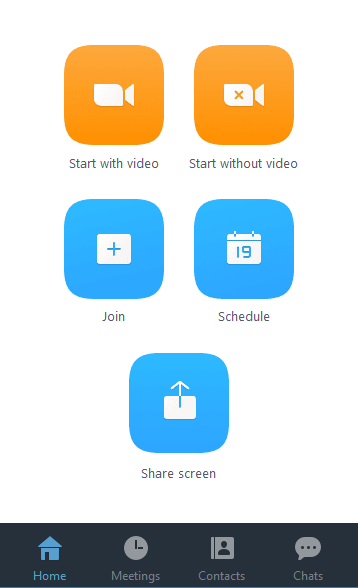 Now, you have started a “meeting” with yourself as the only participant. Click on the Share Screen button. In the window that appears, select the Desktop option to capture your entire desktop. You can also select specific applications or displays to capture if needed. Once selected, click the Share Screen button and the chosen application or screen will have a green border surrounding it to verify that it is being shared.
 Now, you’re ready to record! At the top of the screen, move your cursor to the green area where your meeting ID is listed. A menu will appear:
 In this menu, click More, then either Record on This Computer or Record in the Cloud. There will now be an indicator on your screen verifying that the meeting is now being recorded. You may want to make a really brief recording first to confirm that your equipment is working as expected.
When you’re done recording, go back into your Zoom toolbar as pictured above, click on More, then End Meeting. If you selected the local recording option, the Zoom app will begin compressing the screen recording and save it on your computer. If you selected cloud recording, your video will appear in your Zoom account within a few minutes depending on its length. Once the video is saved, you can edit it in your choice of video editing software if needed.


 The Document below can be viewed and edited by everyone. If you decide to write your own book create a new Google document and paste the photos into your book. Add your own photos and invite only your family as editors. You can make the document public or private.
 Even if your grandchildren live far away you can still write your book. Share your google document by email. Call your grandchildren and brainstorm the book them.
  You could also write the book while on a Zoom or Google Meeting call so that you can watch your kids and record the video of your book writing process.
Google Documents are part of Gmail so if you use Gmail you already have Google Documents. If not you can sign up for a Gmail account which is free and easy.
Go to http://gmail.com/ to create a gmail account. It is pretty simple. If you need directions click below:
https://edu.gcfglobal.org/en/gmail/setting-up-a-gmail-account/1/
 After you create your Gmail account click on the nine little boxes in the upper right hand corner and go to Docs or Google Drive, then Docs. Then create your online draft book. Give it a name, decide who can view it and who can edit it. In this case you, your children and grandchildren.
Directions below:
https://support.google.com/docs/answer/7068618?co=GENIE.Platform%3DDesktop&hl=en
 Create you own Google document and give it a name. You can then share it by email to those who you want to edit the document. You then decide whether you want to make it public for all to read or just limit it to your family. You can copy my photos and/or put your own photos and text in the document.
If you like to have a printed bound book there a number of affordable ways to print the book. Here is one.
https://www.google.com/photos/printing/photo-books/
Enjoy!
Please let me know if this works for you or if I should work to make something in this blog more understandable.


This blog was created to Plan the Planet. It is a work in progress - please click here if you wish to propose changes or additions or ask q...